How to Clean Bank and Accounting Exports in Excel
October 25, 2026 · Aditya Gupta

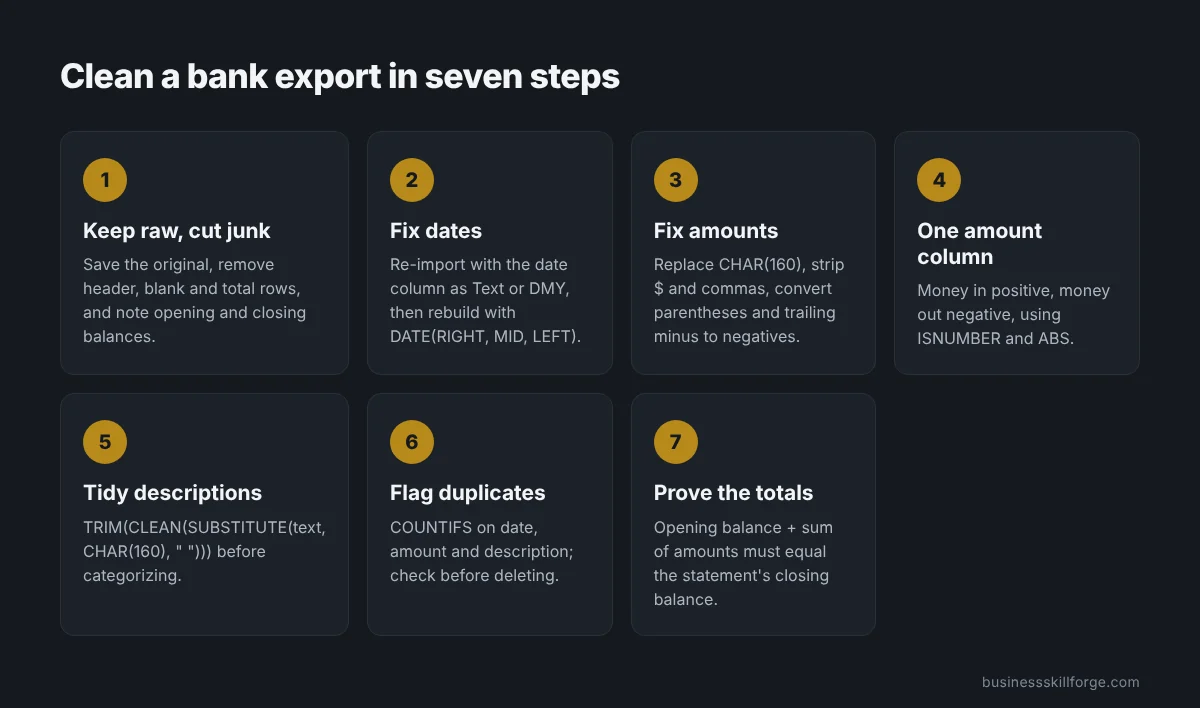
To clean bank data in Excel, you remove the header and footer rows the bank adds, convert dates and amounts stored as text into real dates and numbers, combine separate debit and credit columns into one signed amount, strip hidden spaces from descriptions, and flag duplicates from overlapping downloads. Then you prove the result: opening balance plus all transactions must equal the statement’s closing balance.
Every bank and accounting system exports slightly differently, but the problems repeat. This guide walks through them in the order you should fix them, using one example: a small design studio’s monthly checking account export with 214 rows. Each fix comes with the formula, checked against Microsoft’s documentation, and the reason it’s needed.
Why bank exports need cleaning at all
A CSV file is plain text. When Excel opens it, it guesses what each value is, and with bank data it often guesses wrong. A date written day-first gets read month-first. An amount with a currency symbol or a stray space stays as text. A long reference number loses its last digits.
None of these problems produce an error message. Text amounts simply don’t add up in a SUM, and a misread date lands in the wrong month. That’s why the last step of any cleaning job is a control check, not a glance.
Here’s what the studio’s raw export looks like (a few representative rows):
| Date | Description | Debit | Credit | Balance |
|---|---|---|---|---|
| 03/02/2025 | CLIENT PMT HARBOR DENTAL INV 1042 | $2,400.00 | $20,820.55 | |
| 04/02/2025 | POS 4412 ADOBE *SUBSCRIPTION | $59.99 | $20,760.56 | |
| 13/02/2025 | TRANSFER TO SAVINGS | (1,250.00) | $19,510.56 | |
| 14/02/2025 | POS 4412 CORNER CAFE | 4.50 | $19,506.06 |
Count the problems: dates in day-month-year order, amounts with dollar signs, commas, a trailing space and parentheses, two amount columns instead of one, and descriptions with runs of extra spaces. That’s a typical file.
Step 1: Keep the raw file and remove junk rows
Save the original download untouched and work on a copy. If a number looks wrong later, you need to be able to go back to what the bank actually sent.
Then delete anything that isn’t a transaction: the account name and statement period above the headers, blank rows, and “Total” or “Closing balance” lines at the bottom. Write down the opening and closing balances from those rows first, because you’ll need them for the final check. In the example, three header lines and one footer line come out, leaving 210 rows.
Finally, format the range as an Excel Table (Ctrl+T). Formulas you add in a new column fill down automatically, and later steps such as pivot tables and lookups can refer to the table by name.
Step 2: Fix dates stored as text or read the wrong way
This is the most dangerous problem because it’s partly invisible. If your Excel expects month-first dates (the US default) and the bank exports day-first (common in the UK, Australia and parts of Canada), Excel will turn 03/02/2025 into March 2 instead of February 3. It can’t do that with 13/02/2025, since there’s no 13th month, so that one stays as text. You end up with a column where some dates are wrong and some aren’t dates at all.
Don’t try to repair a column that’s already half converted. The flipped dates look perfectly valid, so you can’t reliably find them. Go back to the raw file and control the import instead:
- Import the dates with the right order, or as text. Bring the CSV in through the Text Import Wizard rather than double-clicking it. In the wizard’s last step you can set each column’s data format, either Date with the order the bank uses (DMY in this example) or Text, which stops Excel converting anything.
- Rebuild text dates with a formula. With the dates held as text in DD/MM/YYYY form, build real dates in a helper column:
=DATE(RIGHT(A2,4), MID(A2,4,2), LEFT(A2,2)). This only works if every date has a two-digit day and month, so check a few early-month dates first.
To check the result, add a column with =ISNUMBER(A2). Every row should show TRUE, and the earliest and latest dates (=MIN and =MAX of the column) should match the statement period.
Step 3: Convert amounts stored as text into numbers
Amounts arrive as text for several reasons: a currency symbol, thousands separators, a trailing space, or a nonbreaking space that looks like a normal space but isn’t. Microsoft’s TRIM documentation explains that it removes the ordinary space character (code 32) but not the nonbreaking space (code 160), which web-based systems often use. CLEAN removes nonprinting characters with codes 0 to 31, such as line breaks.
A helper column can handle all of it at once. In the raw layout, Debit is column C, so in a new helper column (F in this example) enter:
=TRIM(SUBSTITUTE(SUBSTITUTE(SUBSTITUTE(C2, CHAR(160), " "), "$", ""), ",", ""))
That turns “$1,250.00 ” into “1250.00”. Then convert it to a number, handling parentheses (accounting format for negatives) and trailing minus signs, which some systems use:
| Raw text | Formula approach | Result |
|---|---|---|
| $59.99 (with trailing space) | =VALUE(F2) after the cleaning step | 59.99 |
| (1,250.00) | =IF(LEFT(F2,1)="(", -VALUE(SUBSTITUTE(SUBSTITUTE(F2,"(",""),")","")), VALUE(F2)) | −1,250.00 |
| 45.00- | =IF(RIGHT(F2,1)="-", -VALUE(LEFT(F2,LEN(F2)-1)), VALUE(F2)) | −45.00 |
| 1.234,56 (European format) | =NUMBERVALUE(C2, ",", ".") on the raw cell | 1,234.56 |
Put the converted number in a column named Debit clean, then repeat both steps for the Credit column to get Credit clean. One exception: run NUMBERVALUE on the raw value, not the cleaned one, because the cleaning formula deletes commas, and in European format the comma is the decimal separator (1.234,56 would become 1.23456).
NUMBERVALUE lets you state which character is the decimal separator and which is the thousands separator, which is handy for exports from European systems or payment platforms. Microsoft’s documentation notes it ignores spaces, even in the middle of the text.
For a simple column of plain numbers stored as text, you don’t need a formula: select the cells, click the green error indicator and choose Convert to Number.
Watch out for long reference numbers
Microsoft notes that Excel stores numbers to 15 significant digits and replaces any digits beyond that with zeros. A 16-digit card number or a long transaction ID will be silently damaged if Excel treats it as a number, and leading zeros on account or check numbers disappear. Import those columns as Text, and never use them as numbers.
Step 4: Combine debit and credit columns into one signed amount
Many banks give you two columns, money out and money in. Bookkeeping, pivot tables and reconciliations are far easier with one column where money in is positive and money out is negative.
Once you have cleaned numeric versions of both columns (called Debit clean and Credit clean here), add an Amount column to the table:
=IF(ISNUMBER([@[Credit clean]]), [@[Credit clean]], 0) - IF(ISNUMBER([@[Debit clean]]), ABS([@[Debit clean]]), 0)
The square-bracket names are Excel Table references to the current row, so the formula reads the same in every row. ABS makes the formula work whether the bank showed debits as positive numbers or in parentheses, and ISNUMBER stops a blank cell from causing an error. In the example, the $2,400.00 client payment becomes +2,400.00 and the $59.99 subscription becomes −59.99.
If your export already has one amount column but marks direction with a “DR” or “CR” label in a separate column, the same idea applies. With the label in G2 and the amount in H2: =IF(G2="DR", -H2, H2).
Step 5: Tidy descriptions so you can categorize them
Bank descriptions are full of card numbers, double spaces and line breaks. Clean them in a Description clean column with:
=TRIM(CLEAN(SUBSTITUTE(B2, CHAR(160), " ")))
A description with three spaces between ADOBE and *SUBSCRIPTION comes out with one. That matters because a lookup or a filter treats “ADOBE ” with a trailing space and “ADOBE” as different text.
For categorizing, keep a small rules table of keywords and categories (ADOBE goes to Software, CORNER CAFE goes to Meals, HARBOR DENTAL goes to Client fees). In Excel for Microsoft 365, Excel 2021 or Excel 2024, one formula can find the first keyword that appears in each description:
=XLOOKUP(TRUE, ISNUMBER(SEARCH(Rules[Keyword], [@[Description clean]])), Rules[Category], "Uncategorized")
SEARCH isn’t case-sensitive, so “adobe” and “ADOBE” both match. Review everything left as “Uncategorized” by hand, and add new keywords as you go. Our guide on how to categorize business expenses covers which categories to use, and the XLOOKUP vs VLOOKUP comparison explains the lookup options if you’re on an older version.
Step 6: Find duplicates without deleting real transactions
Duplicates usually appear when two downloads overlap, for example a statement export for the month plus a “last 30 days” export taken mid-month. Excel’s Remove Duplicates command is quick, but it can’t tell the difference between an accidental duplicate and two genuine identical transactions, like two $4.50 coffees on the same day.
Flag first, delete second. Add a column that counts matching rows:
=COUNTIFS([Date], [@Date], [Amount], [@Amount], [Description], [@Description])
Filter for anything above 1 and compare it with the bank’s online statement or the PDF. In the example, six rows were overlap duplicates and came out, and the two identical coffee purchases stayed, leaving 204 transactions.

Step 7: Prove the cleaned data is complete
Don’t skip this. A clean-looking sheet that’s missing three rows is worse than a messy one, because nobody checks it again.
The test is simple: opening balance plus the sum of the Amount column must equal the closing balance on the statement. For the studio:
| Line | Amount |
|---|---|
| Opening balance (from statement) | $18,420.55 |
| Money in (sum of positive amounts) | +$12,850.00 |
| Money out (sum of negative amounts) | −$16,037.40 |
| Calculated closing balance | $15,233.15 |
| Closing balance (from statement) | $15,233.15 |
| Difference | $0.00 |
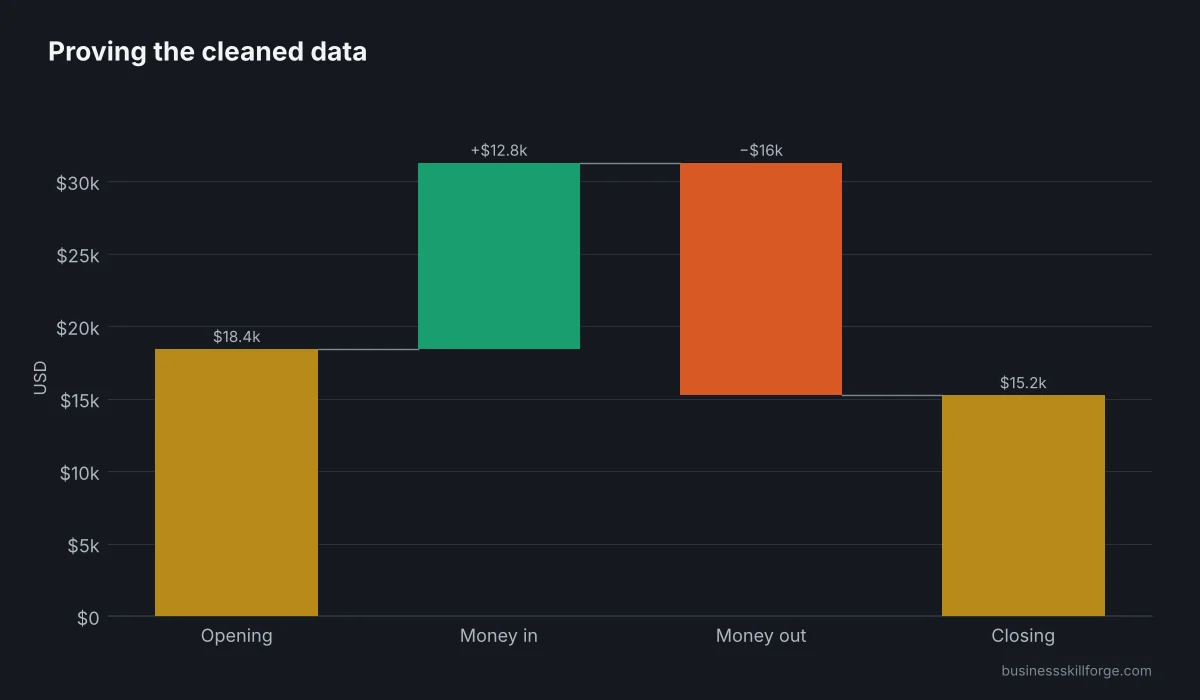
If the difference isn’t zero, compare it with the amounts in your file. A difference equal to one transaction usually means a row was deleted or duplicated. A difference that’s double a transaction usually means a sign is wrong. A difference across many rows usually means some amounts are still text and were left out of the SUM; =COUNT versus =COUNTA on the Amount column shows how many.
If the export includes a running balance column, a second check catches problems at the exact row they start: the previous balance plus this row’s amount should equal this row’s balance.
Once the data balances, it’s ready for a bank reconciliation against your books, or for a pivot table report of spending by category.
Make it repeatable
If you clean the same bank’s export every month, don’t redo it by hand. Two options:
- A template workbook. Keep the helper columns and checks in a saved file. Each month, paste the new raw data into the table and the formulas recalculate.
- Power Query. Microsoft describes Power Query as the Get & Transform Data tools on the Data tab. Each cleaning action you take in the Power Query Editor is saved as an applied step, and when you refresh the query, each step runs again automatically. Point it at next month’s file and the cleaning is done in one click.
Key takeaways
- Keep the raw export untouched, remove header and footer rows, and record the opening and closing balances before you start.
- Day-first dates can be silently misread as month-first; re-import them through the Text Import Wizard or rebuild them with a DATE formula and confirm every value with ISNUMBER.
- TRIM does not remove nonbreaking spaces, so substitute CHAR(160) first, then strip symbols and convert parentheses or trailing minus signs to negatives.
- Combine debit and credit columns into one signed amount, and flag duplicates with COUNTIFS before deleting anything.
- The cleaned data is only finished when opening balance plus all transactions equals the statement’s closing balance.
Frequently asked questions
Why won't my bank amounts add up in Excel?
Usually because some amounts are stored as text, so SUM skips them. Common causes are currency symbols, thousands separators, trailing spaces and nonbreaking spaces from web exports. Compare COUNT and COUNTA on the column to see how many values aren’t numbers. Clean them with SUBSTITUTE and TRIM, convert them with VALUE or NUMBERVALUE, or use Convert to Number for simple cases.
Why does Excel mix up the day and month in my bank export?
Excel interprets dates in the order it expects. If it expects month first and the bank writes day first, dates where the day is 12 or less are flipped, and dates with a day above 12 are left as text. Re-import the file through the Text Import Wizard with the date column set to the bank’s order or to Text, then rebuild the dates with a DATE formula.
Does TRIM remove all spaces in Excel?
No. TRIM removes leading and trailing spaces and reduces runs of spaces between words to one, but Microsoft notes it only handles the standard space character, code 32. The nonbreaking space, code 160, which many web systems use, stays put. Replace it first with SUBSTITUTE(text, CHAR(160), ” “) and then apply TRIM.
Is it safe to use Remove Duplicates on bank transactions?
Not without checking first. Remove Duplicates deletes rows that match on the columns you choose, and it can’t tell an accidental duplicate from two genuine identical purchases, such as two equal coffees on the same day. Flag possible duplicates with COUNTIFS, compare them with the bank statement, and delete only the ones that came from overlapping downloads.
Should I use Power Query or formulas to clean bank data?
Use formulas if you clean a file occasionally or need to see each step in a cell. Use Power Query if you import the same bank’s format every month, because it records each cleaning action as a step and reruns all of them when you refresh the query. Either way, finish with the same control check against the statement’s closing balance.
Sources
- Microsoft Support: TRIM function
- Microsoft Support: CLEAN function
- Microsoft Support: NUMBERVALUE function
- Microsoft Support: Top ten ways to clean your data
- Microsoft Support: Convert numbers stored as text to numbers in Excel
- Microsoft Support: Keeping leading zeros and large numbers
- Microsoft Support: About Power Query in Excel
- Microsoft Support: Text Import Wizard
This article is general education, not tax, legal, accounting or investment advice. Rules and thresholds differ by country and change over time, so check the specifics for your situation. See our financial disclaimer.
Get practical finance & accounting tips in your inbox
Join US professionals getting our best guides, templates and tools. Free. Unsubscribe anytime.